Your manuscript, set like a book.
Bring your Word manuscript. Choose a book design. Preface does the typesetting and the checking, and you leave with a print-ready PDF and an EPUB. Change as much of the design as you like, or none of it.
For Mac and Windows. $129 while early access lasts, and nothing to renew. Try the whole of it before you pay: everything works except writing the file. Your manuscript stays on your computer.
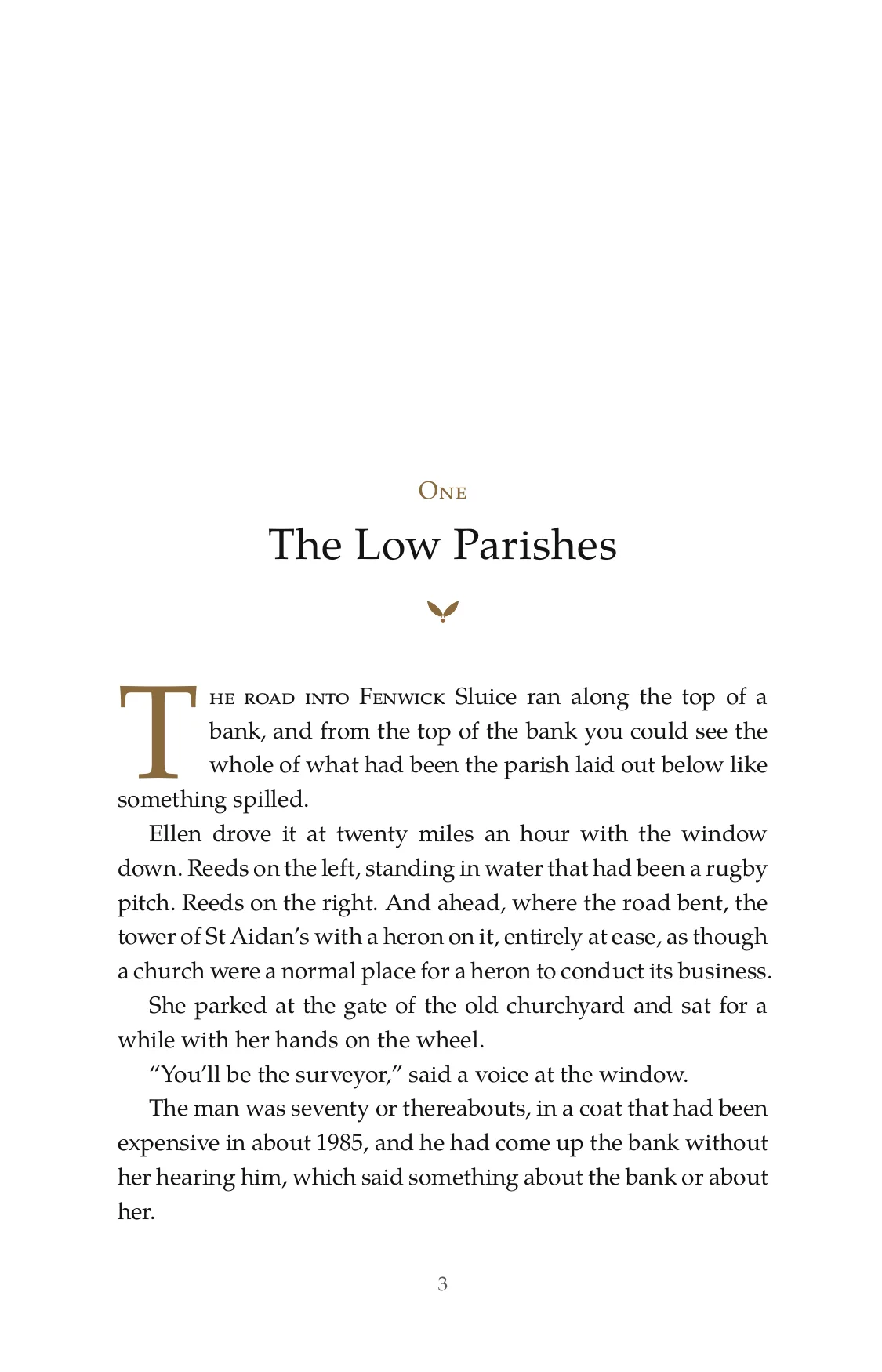
Set by Preface from a Word document.
How it works
Four steps from the file you have to the files you upload. Click any screen to see it closer.
-
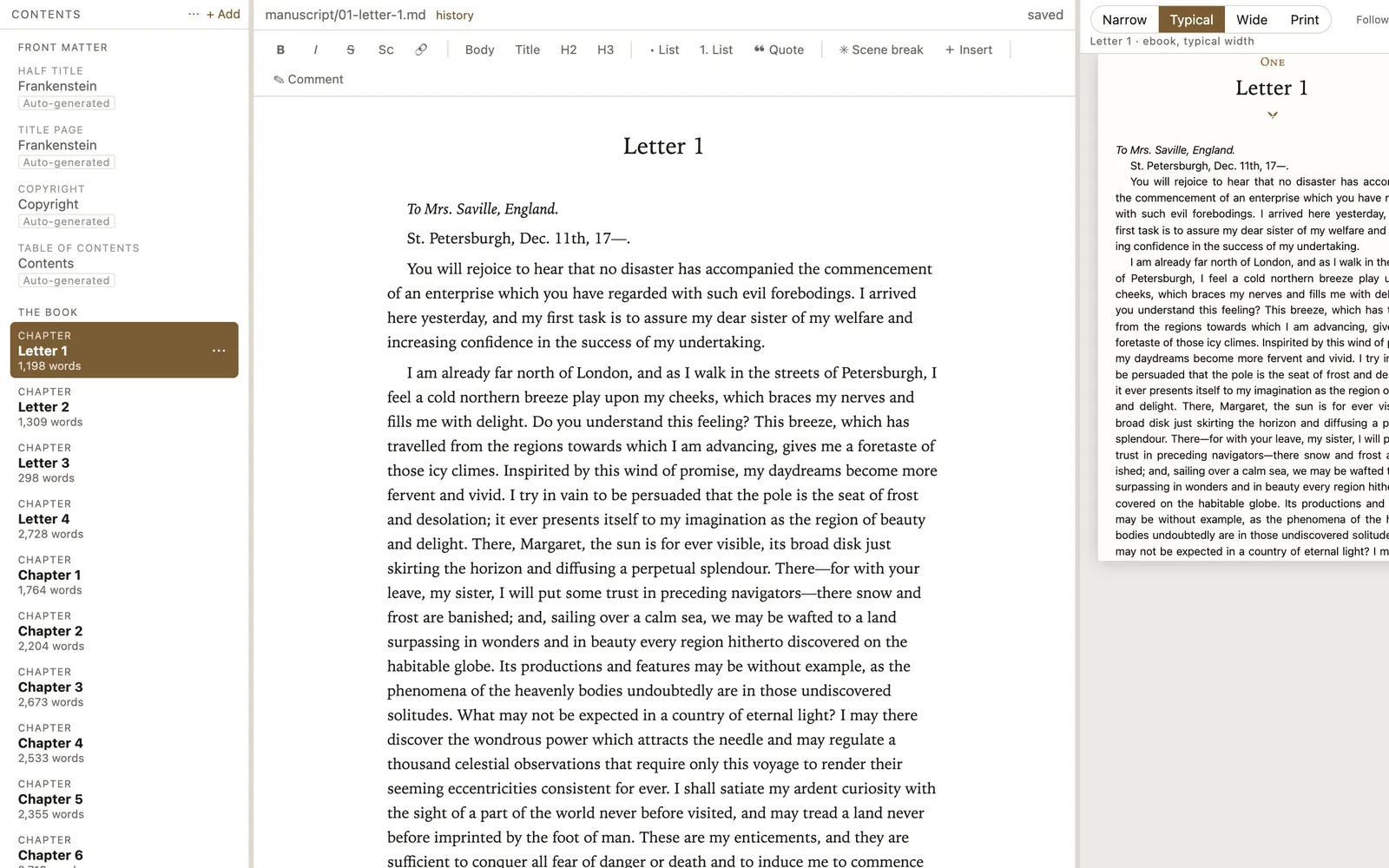
Import your manuscript
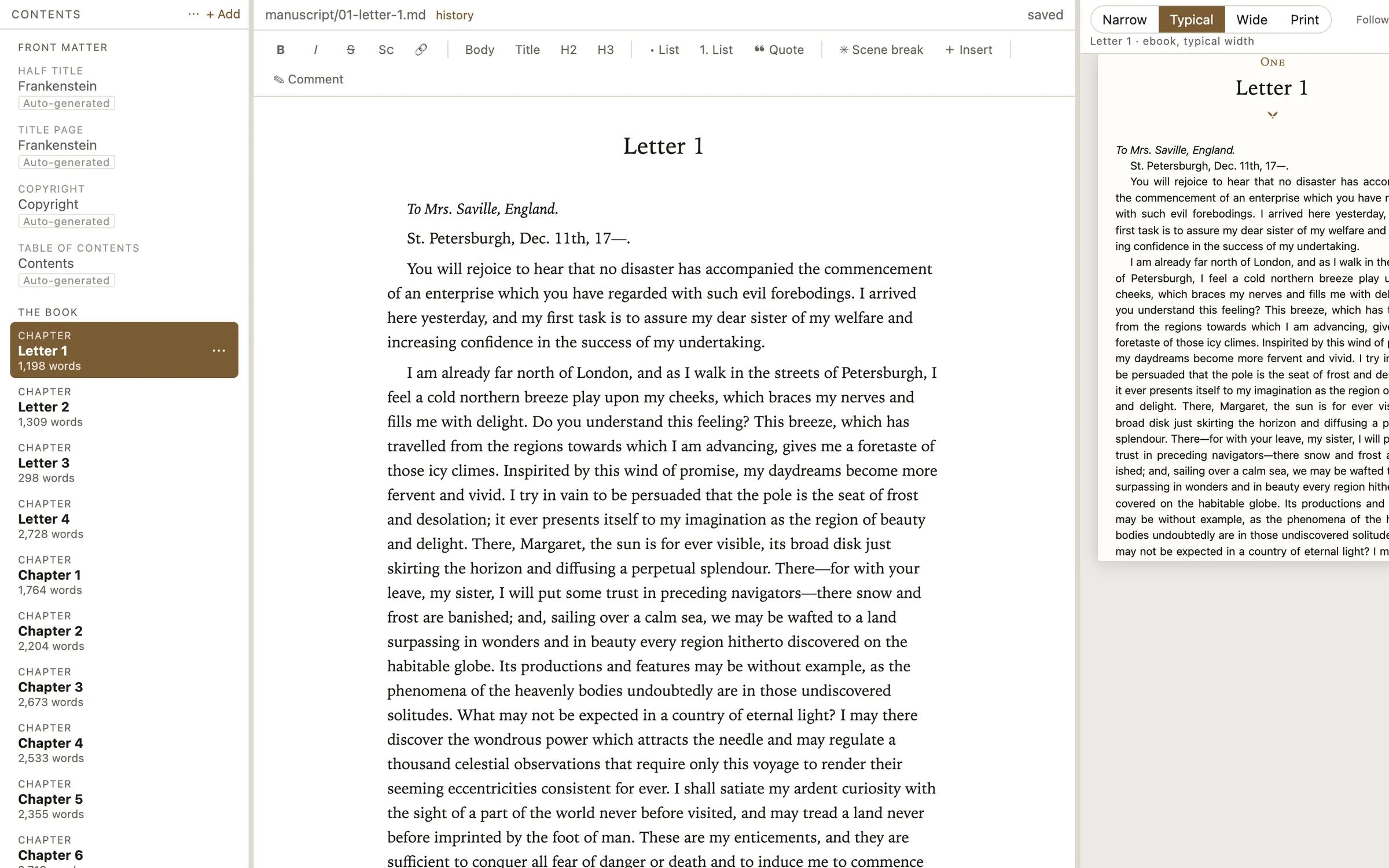
Open your Word document. Preface finds the chapters, the front and back matter, and the scene breaks, and lists them so you can check.
-
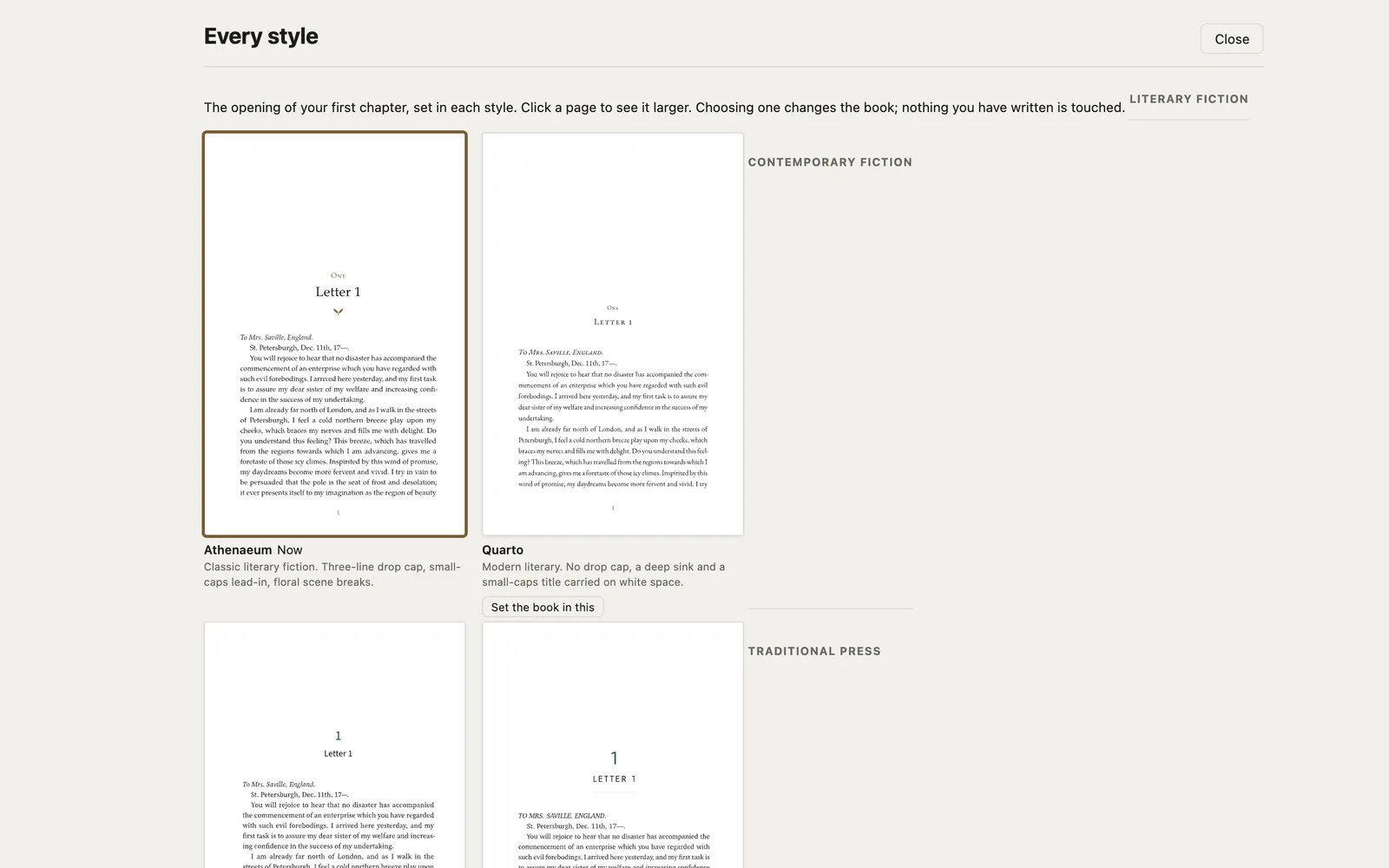
Choose a design
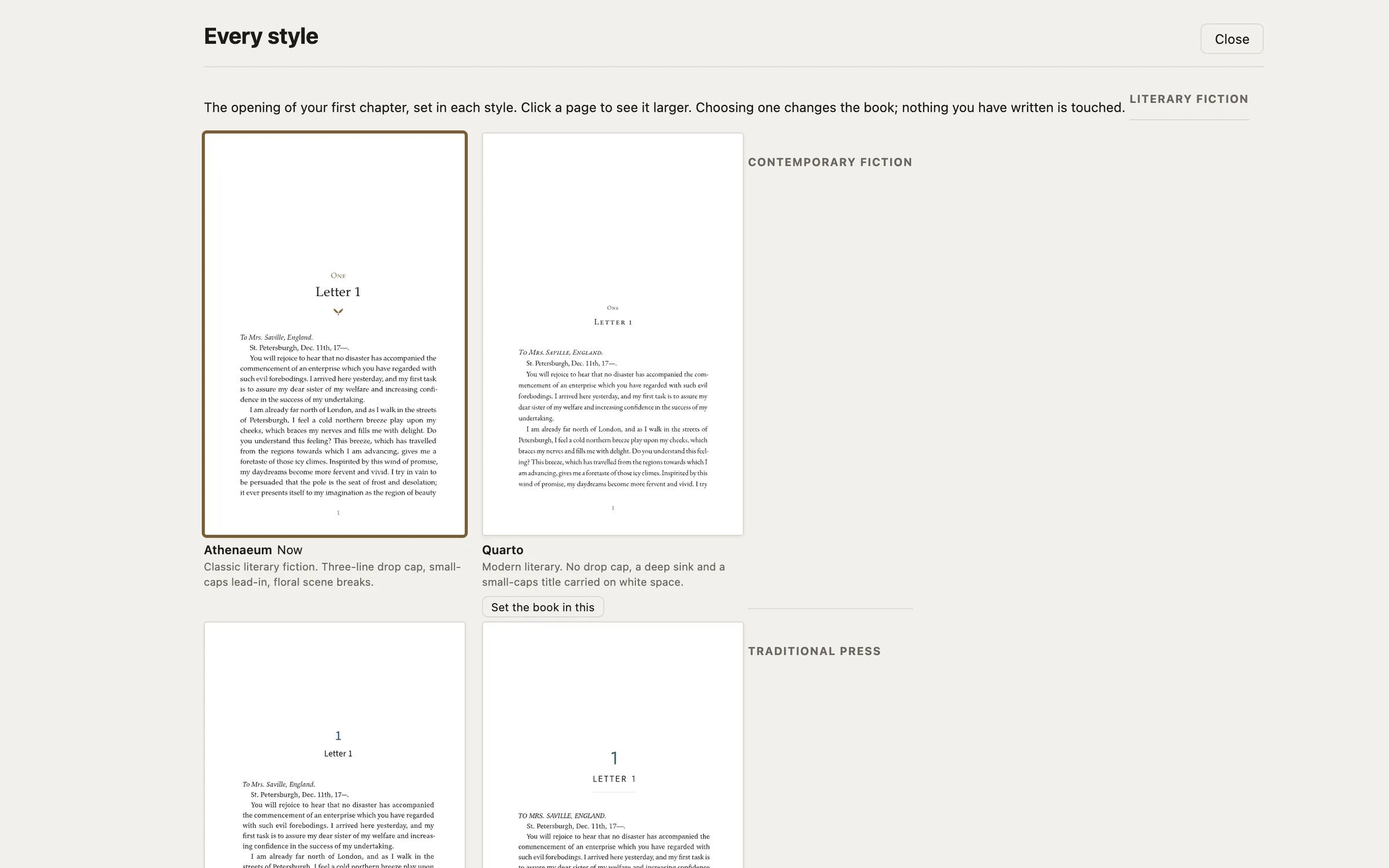
See a page of your own book in all twelve designs, and pick one. Adjust it afterwards if you want to.
-
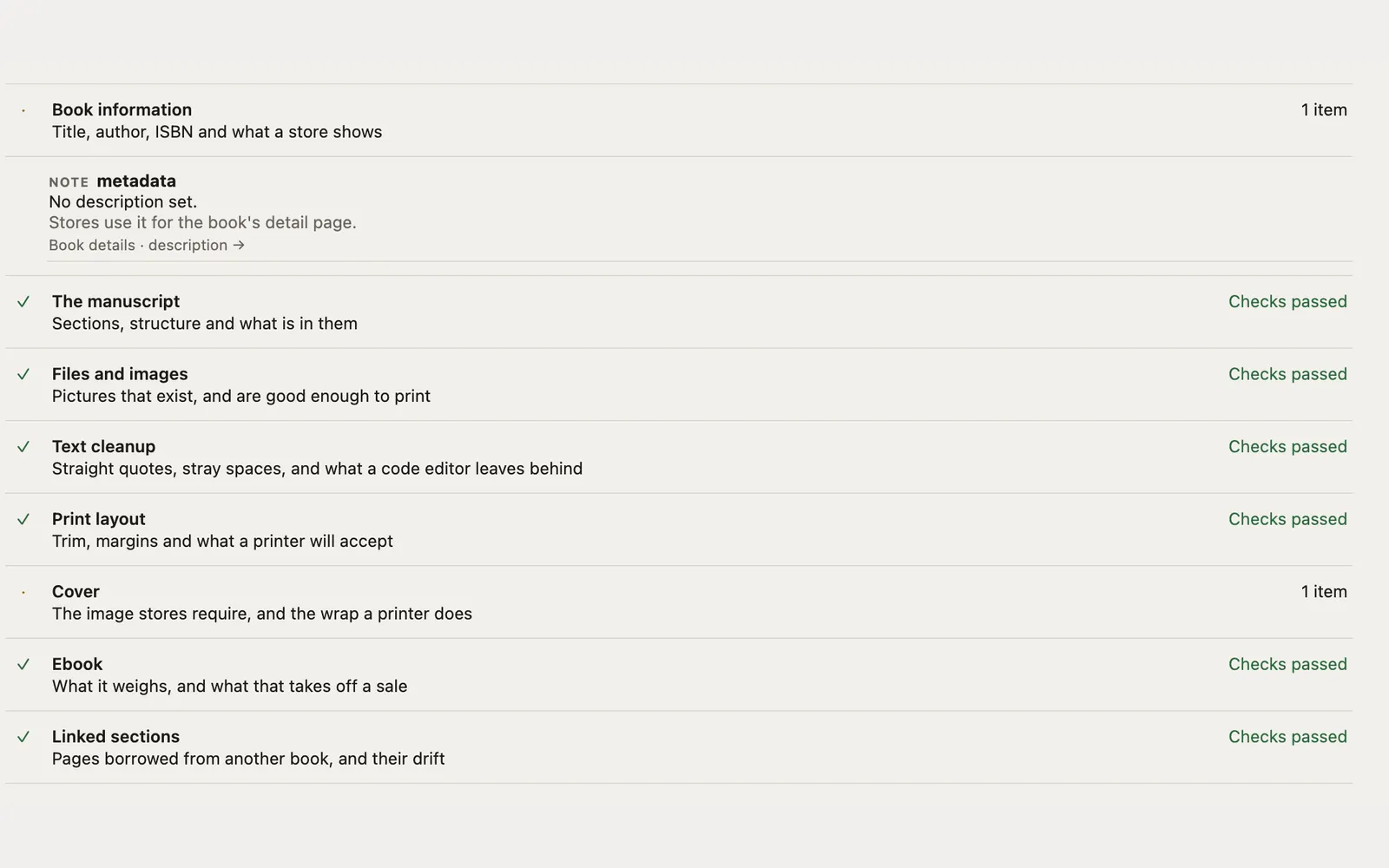
Check it
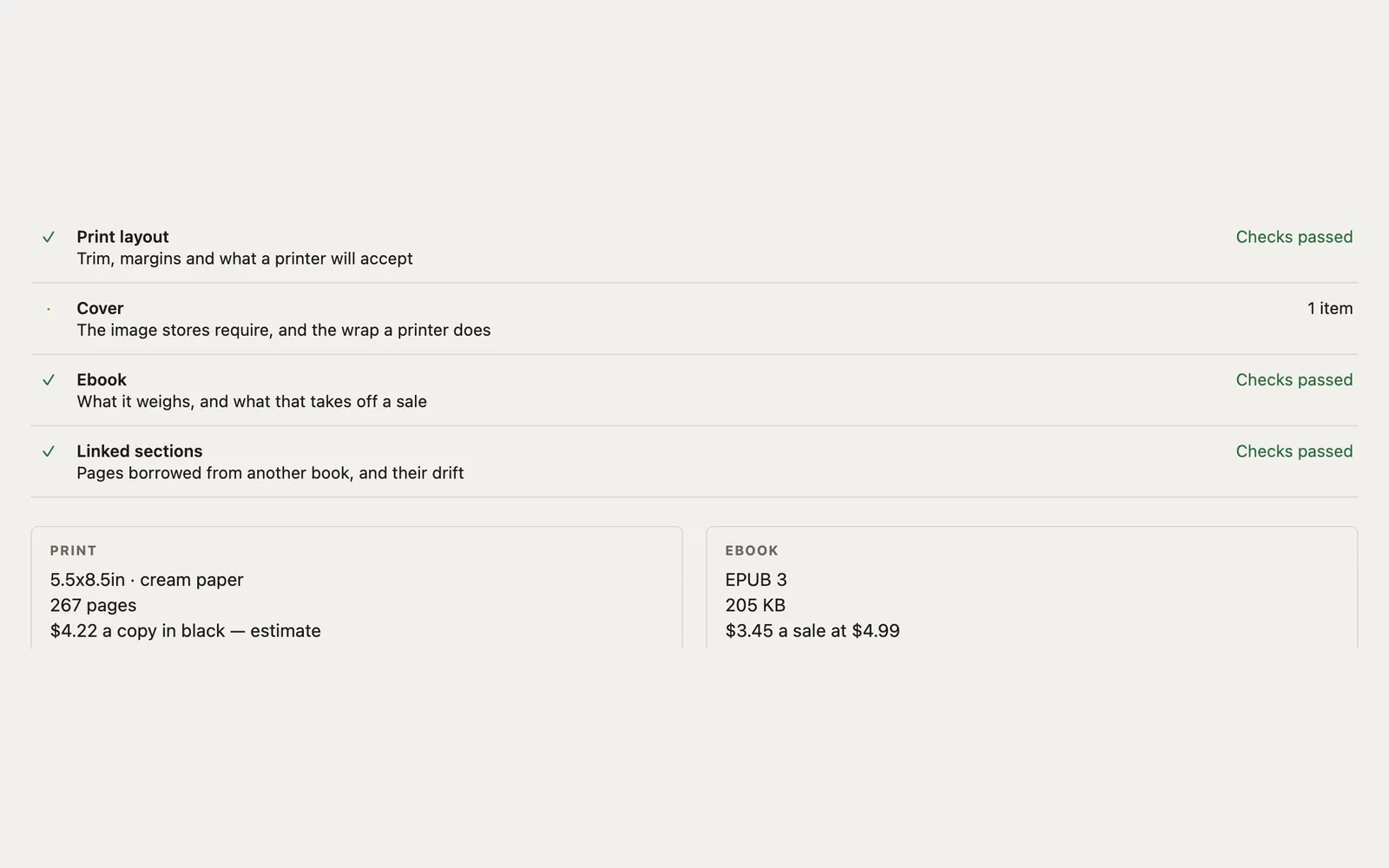
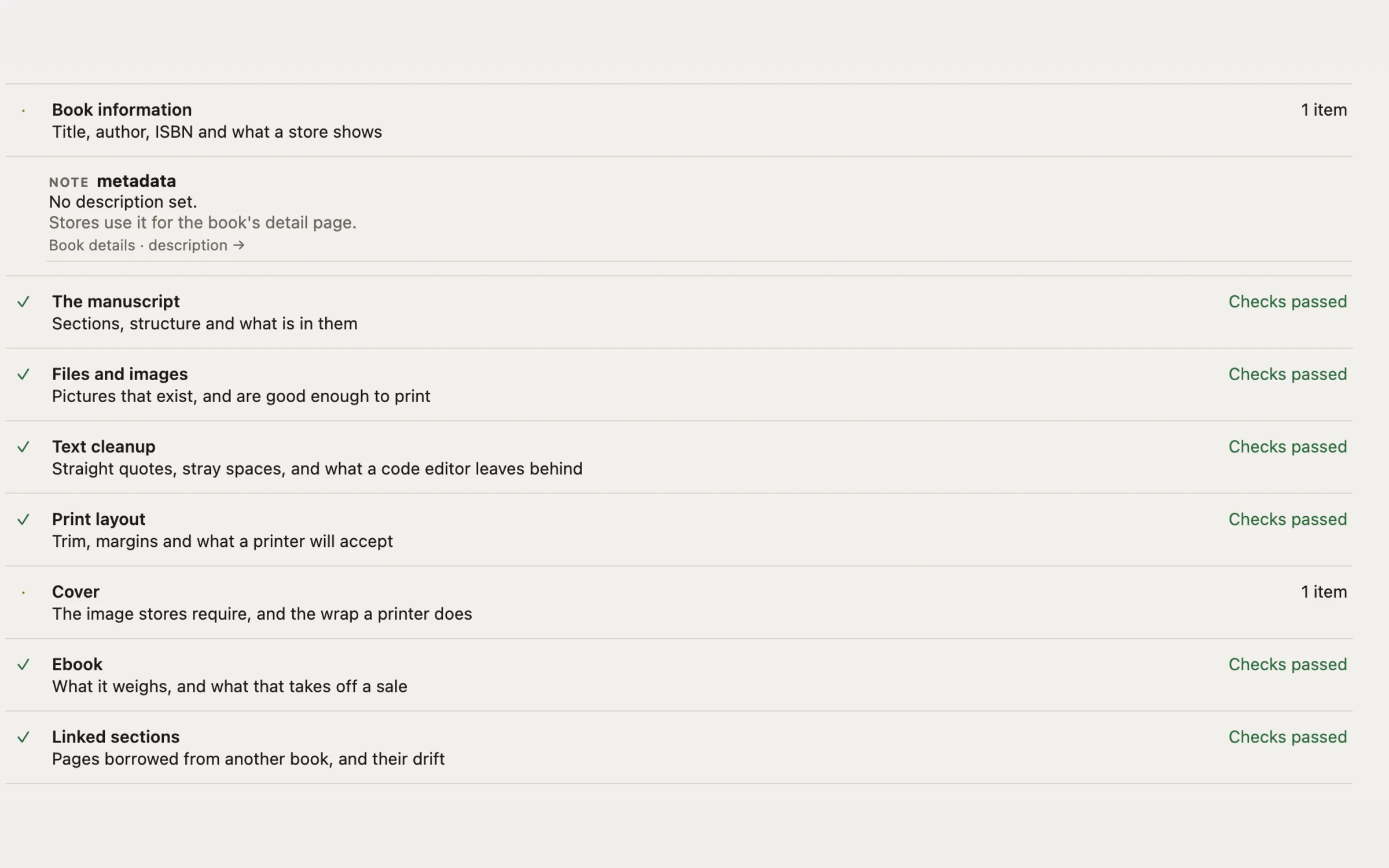
Preface goes through the book before you export it and lists what it found, with a link to the thing that fixes each one.
-
Export
A print-ready PDF and an EPUB, ready to upload to the service printing your book and to the ebook stores.
Twelve designs
Each one is a whole book design, print edition and ebook together. Three of the twelve are below; in Preface you see a page of your own book in each. Click a page to see it larger.
-
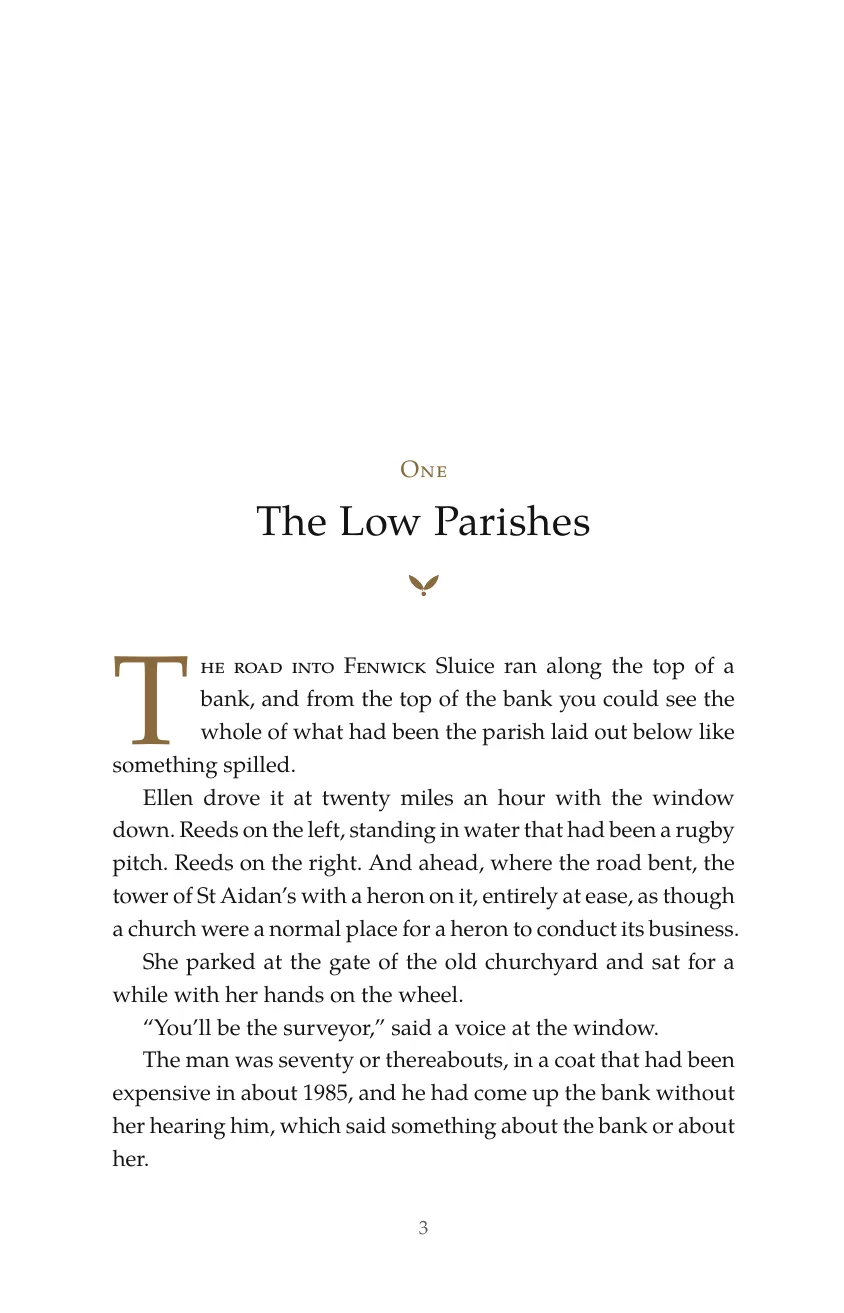
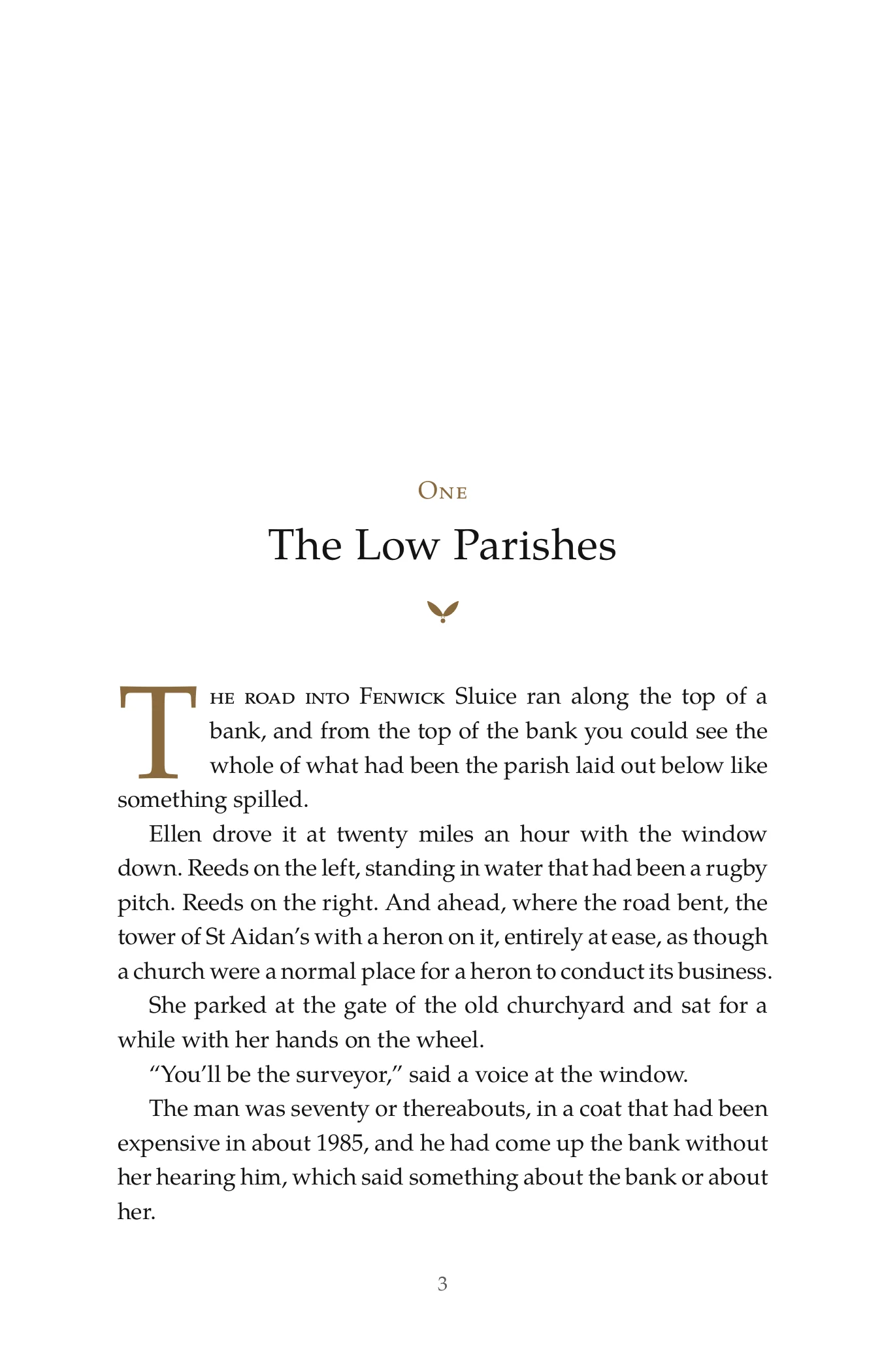
Athenaeum
5½ × 8½ in
For literary fiction. A three-line drop cap, small capitals to start each chapter, an ornament at the scene breaks.
-
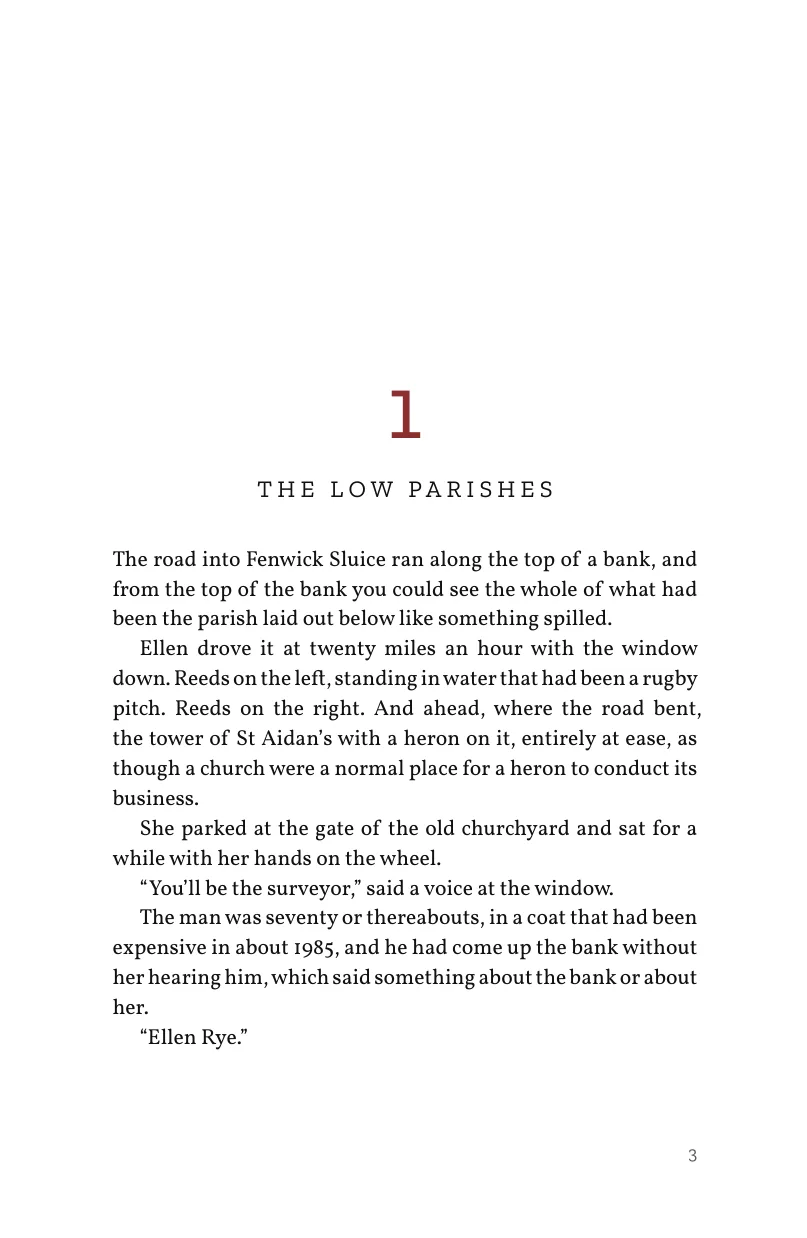
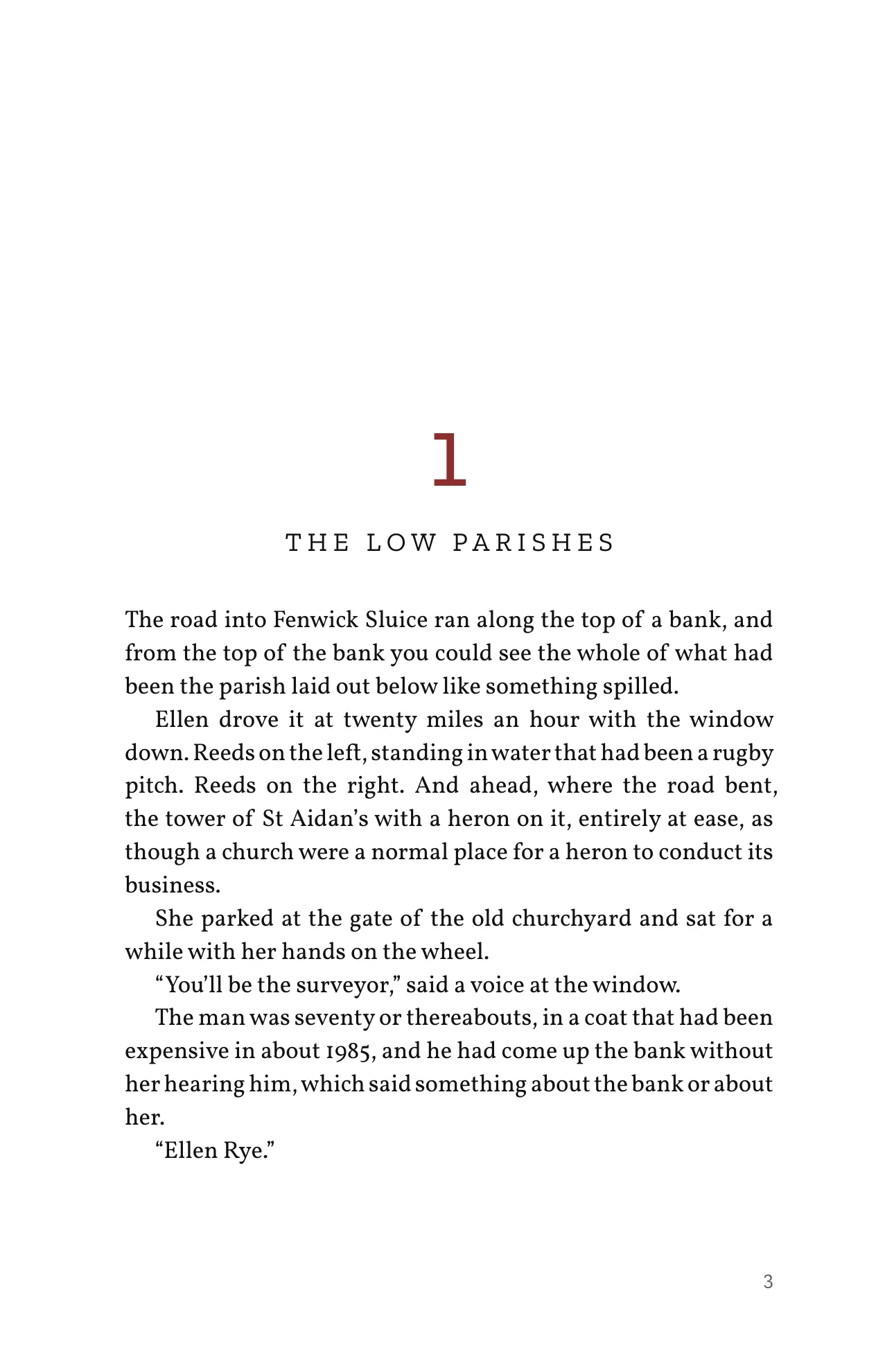
Noir
5¼ × 8 in
For thrillers. Large chapter numbers, widely spaced titles, tight line spacing.
-
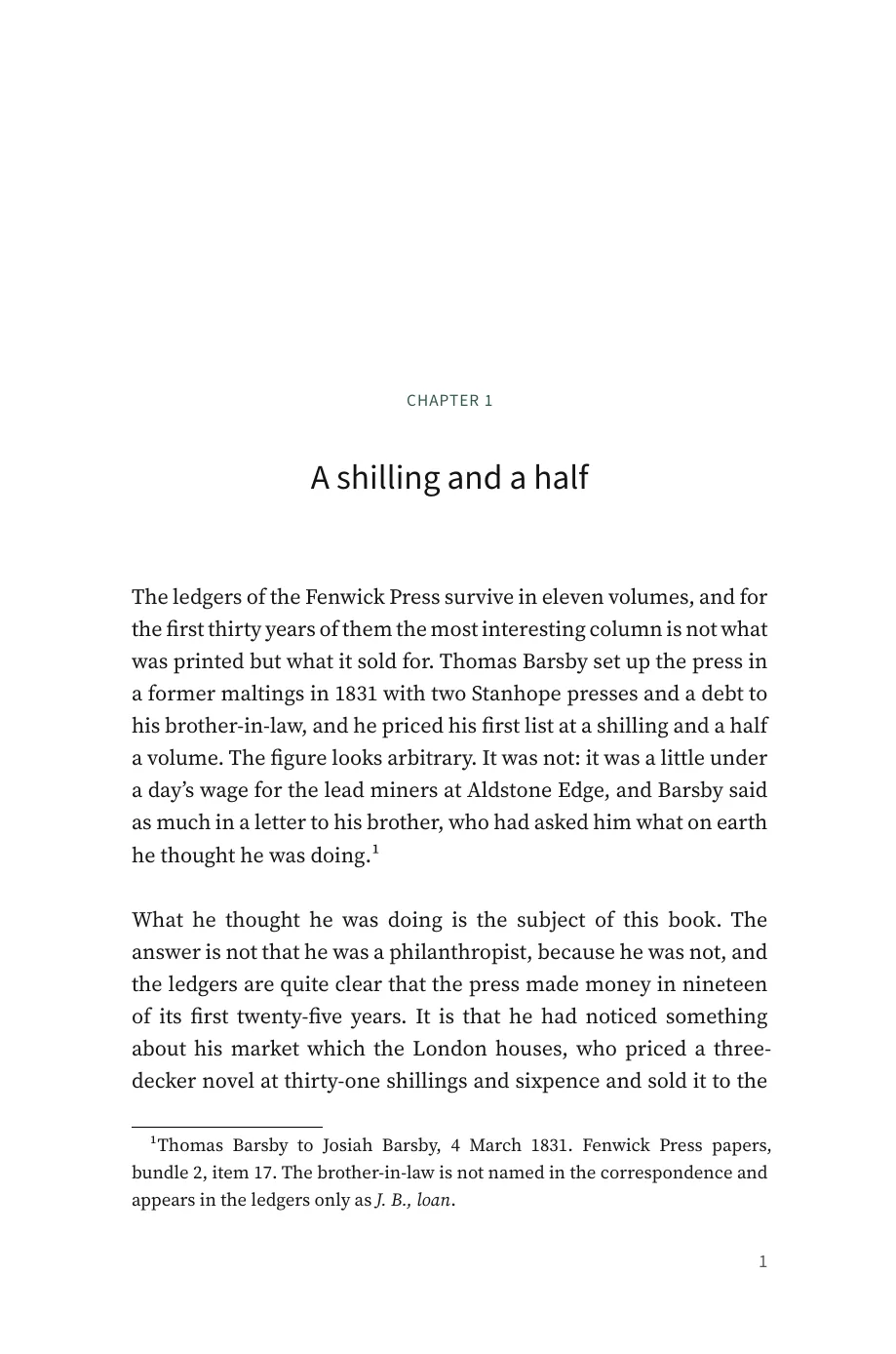
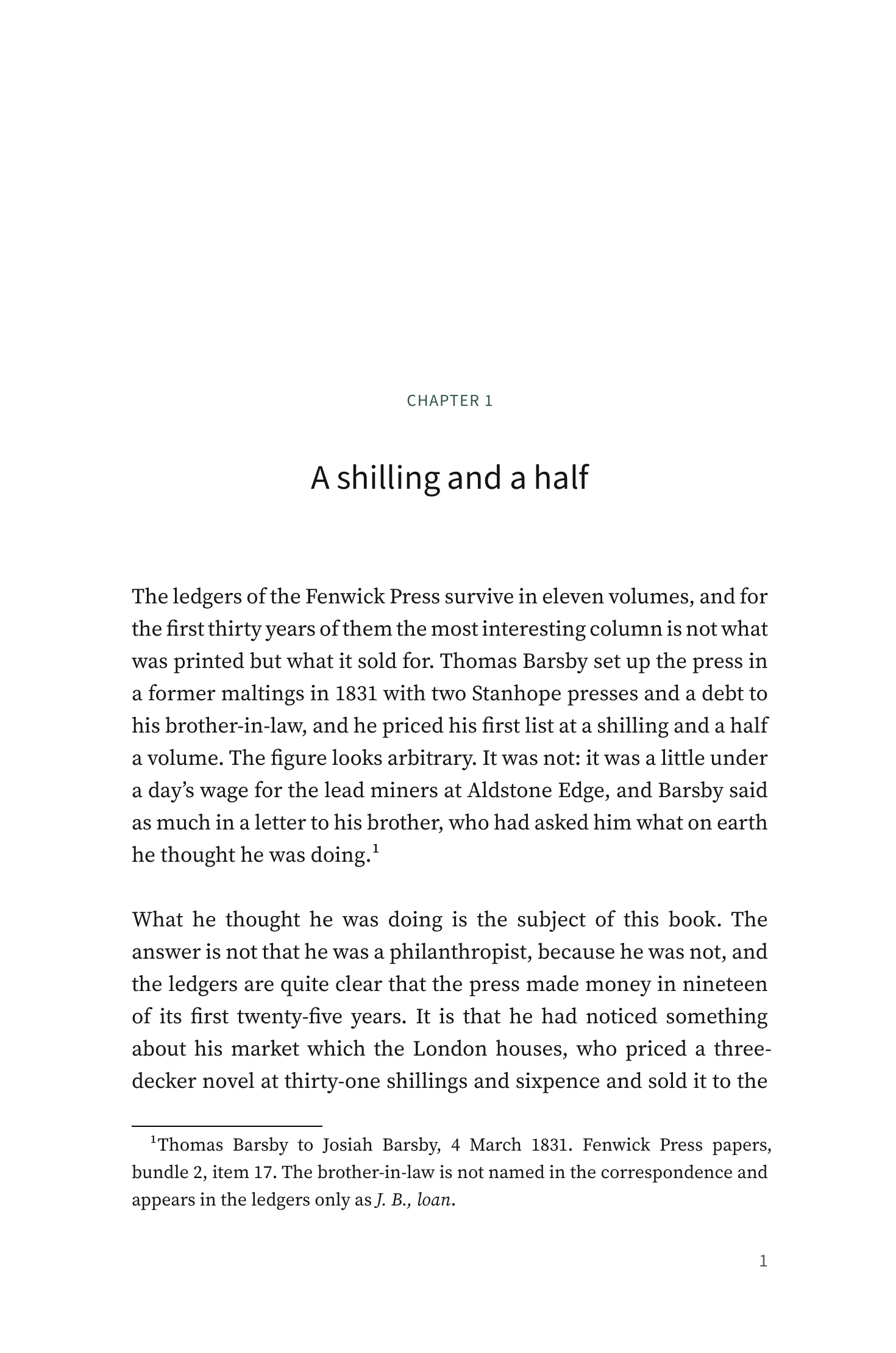
Treatise
6 × 9 in
For nonfiction. Numbered chapters, space between paragraphs instead of indents, a larger page. Shown on a nonfiction sample.
What a design decides, and what you can change
A design settles the typefaces and their size, the line spacing and the width of the text, the margins, how a chapter opens and how a scene break is marked, and it carries an ebook design to match. The page size under each name is what that design is drawn for, not a limit: once you have picked one, the Style screen lists its settings and you can change any of them, page size included, and watch your own book re-set as you do.
Sample books
Not pictures of books — the files themselves, as Preface wrote them. Open them in whatever you read PDFs and ebooks in.
Frankenstein
The whole novel, set from the Word file it arrived as. Take all three and you can see for yourself what happens in between.
- The Word manuscript · 164 KB
- The print PDF · 269 pages, 826 KB
- The EPUB · 206 KB
The Salt Line
A short novel we wrote to test Preface, in the Athenaeum design at 5½ × 8½ in. The page at the top of this page is page 3 of it.
- The print PDF · 25 pages, 65 KB
- The EPUB · 21 KB
What Preface looks after
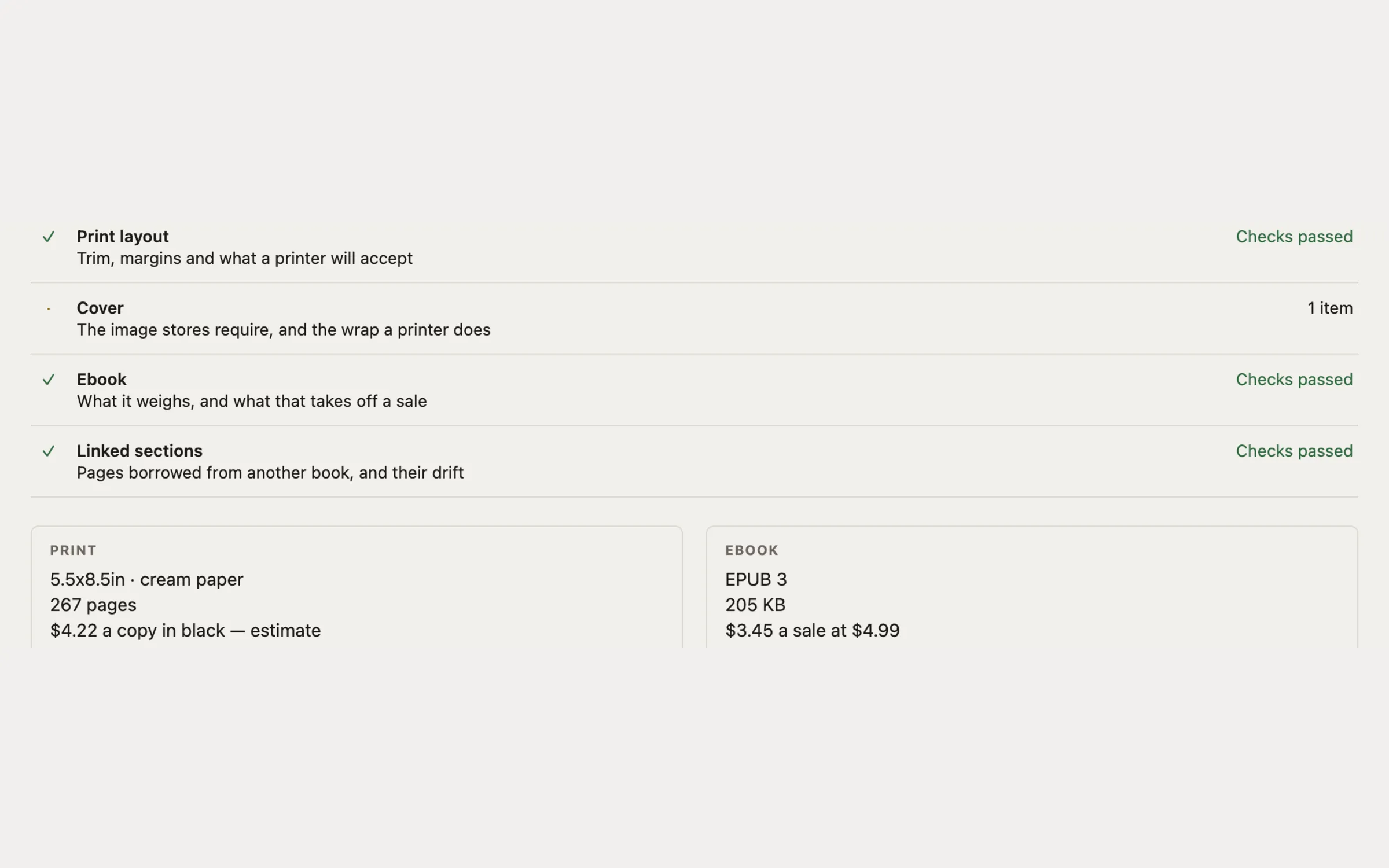
Once the text is set the work is page by page: a chapter left ending with one line overleaf, facing pages that finish at different heights, a ladder of hyphens down the edge of a paragraph. Preface fixes what it can and lists what it can’t.
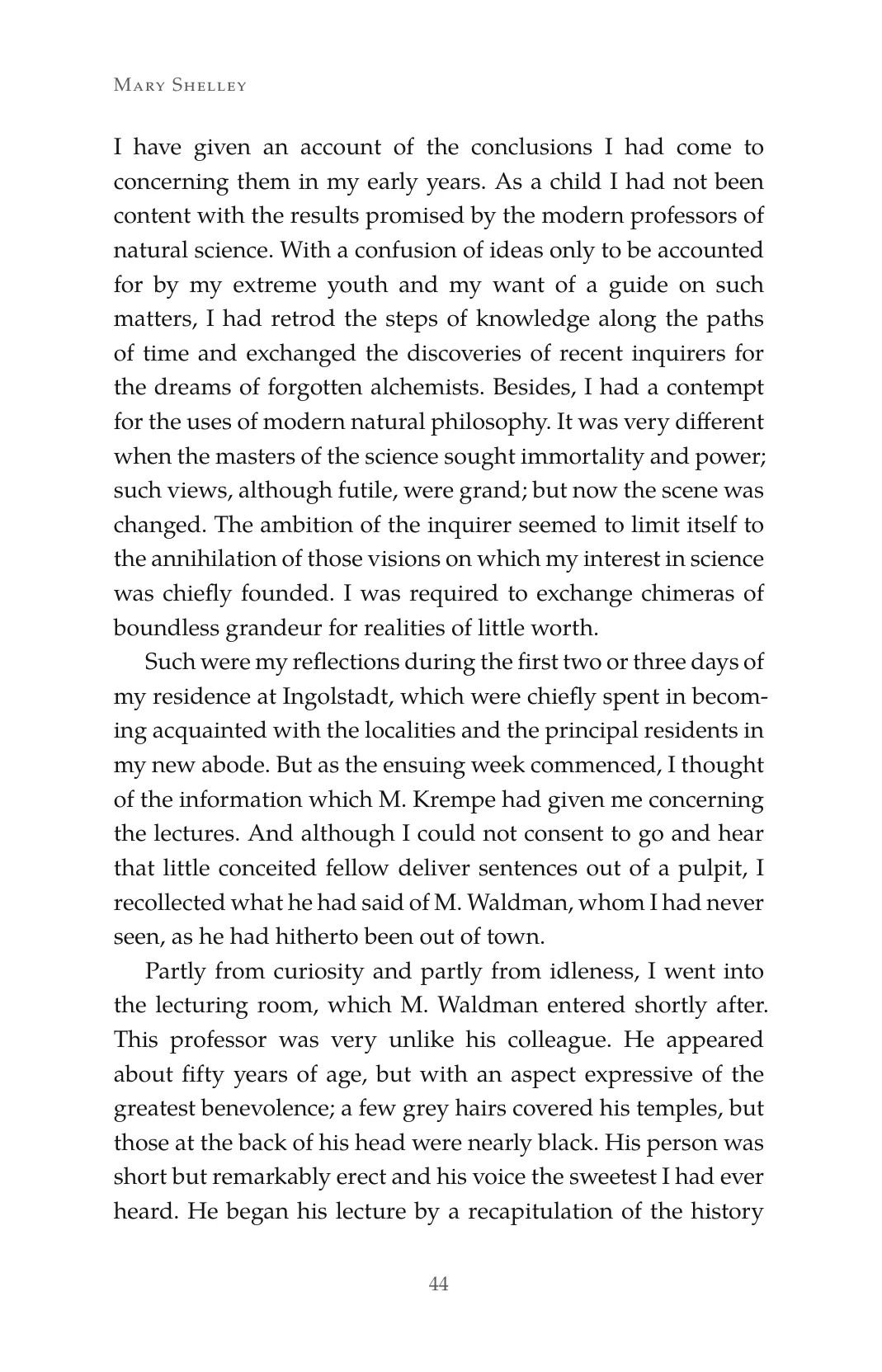
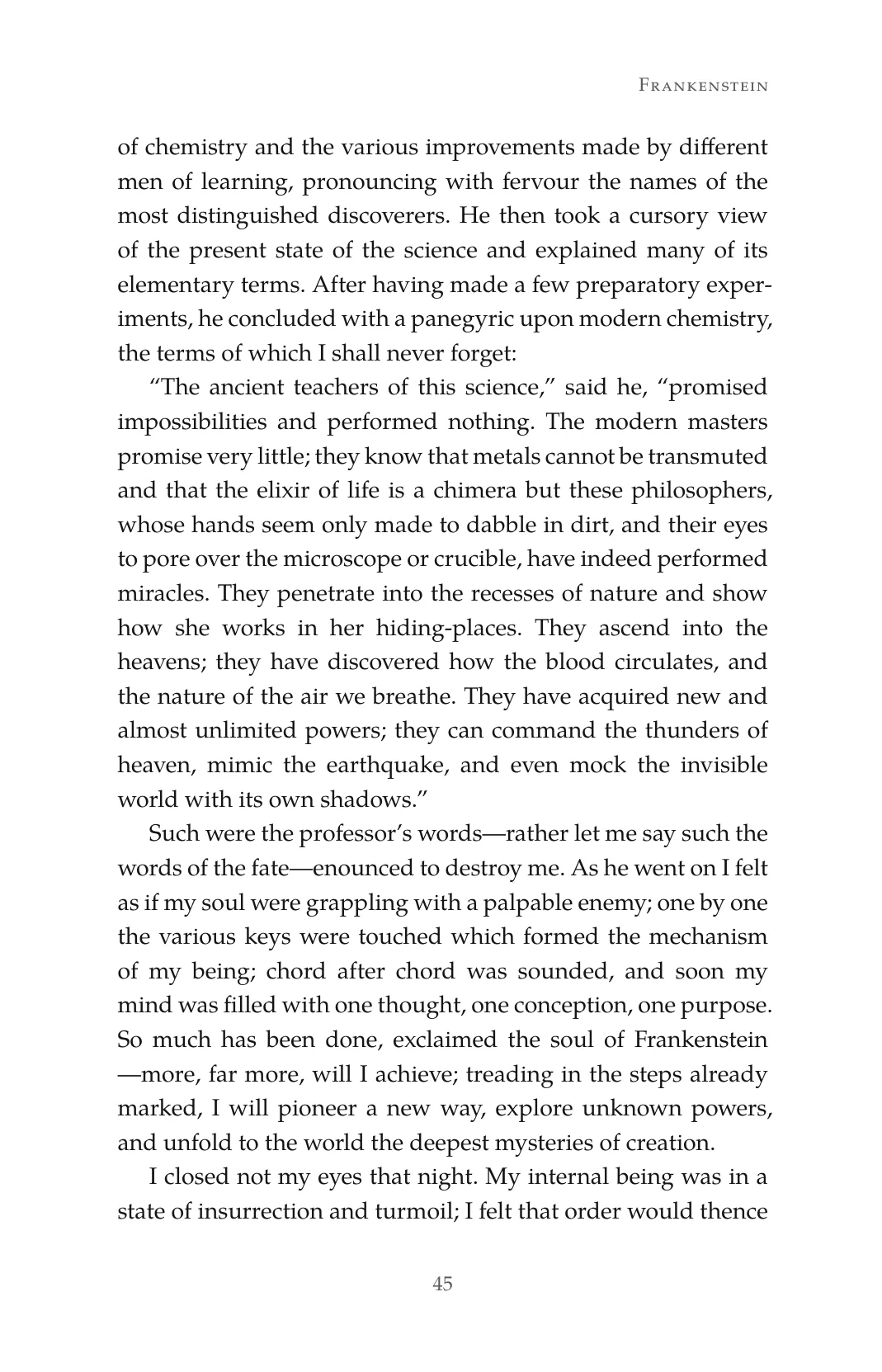
Facing pages should finish on the same line. In this 267-page edition, all 92 of the mid-chapter spreads do.
How that was counted
A spread is two pages you see at once. The 92 are the ones falling in the middle of a chapter, where both pages are full; the 26 spreads where a chapter ends are left out, because a chapter ending part-way down a page is meant to be short and nobody would want it stretched. The edition is the one linked above, set from the Word file in the samples.
The files you upload
A print-ready PDF at your trim size with every font embedded in it, an EPUB 3 designed to match, and a print cover with the bleed your printer asks for.
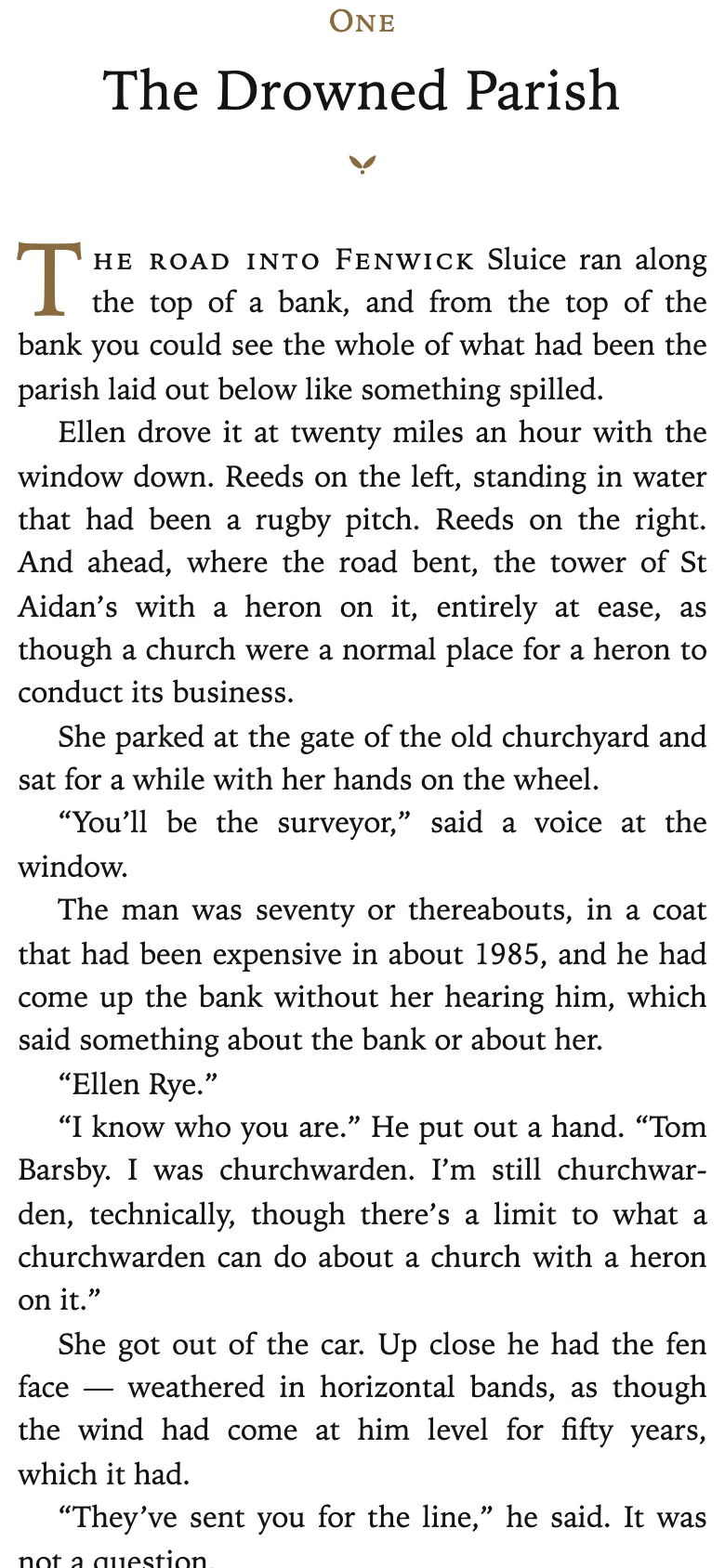
An ebook has no fixed page: it reflows to whatever screen it is opened on, and to the size the reader chooses. The design goes with it.
What Preface checks before it exports
The details a store asks for and an ISBN that fails its own checksum; chapters and front matter that are missing or empty; pictures that are missing, or too coarse for the size they will print at; straight quotes, stray tabs and double spaces left in the text; a trim, paper or page count the service printing your book does not offer; and, for the ebook, what the file weighs and what that costs you per sale.
What “a print cover” means
You bring the artwork: a front, or a front and a back, or one picture that wraps the whole book. Preface draws none of it. It takes the page count your book actually came to, the thickness of the paper you chose and the bleed your printer publishes, works out the spine, lays the panels out on one sheet and writes the PDF. It will set the spine type if you want it, and keep the barcode corner clear for printers that say where theirs goes. It also writes a proof copy with the folds, cut line and safe areas drawn on.
The design stays yours, and so does the last check: before you commit a cover, hold the numbers Preface gives you against your printer’s own template.
What it can tell you about cost
What a copy will cost to print at several trim sizes, so you can compare, from the services that publish their prices. And which ebook royalty rate pays you more, once the delivery fee comes off the higher one.
Your manuscript stays with you
Preface works on a folder on your own computer and has no server that your book passes through. Your chapters are kept as ordinary text files, so you can open and read them without Preface.
Buying it
One purchase, and Preface is yours to use indefinitely. There is nothing to renew and no per-book fee.
- $129 while early access lasts, against $179 after
- Future updates included, with no end to them
- One person, up to three computers you own, macOS and Windows
- Unlimited books, pen names and client work
- Your key is checked on your own computer, with no network
- Thirty days to change your mind, no reason needed
Or try it first — without a license Preface does everything but write the file, so you can see your own book set, checked and paged before deciding. Refunds · Terms
Questions
- What can I bring it?
- A Word document —
.docx— which is what Word, Google Docs, Scrivener and Pages all export. That is the only document format Preface reads. - What do I need to run it?
- A Mac running macOS 10.15 or later, or a Windows PC. Preface is an app you download and install.
- Which printers can I use?
- Preface knows what the print-on-demand services publish for perfect-bound paperbacks and checks your book against the one printing it. Hardcover isn’t covered yet. More in the FAQ
- Can I sell what I make with it?
- Yes. The PDF and the EPUB are yours, with no restriction, no watermark and no royalty.
- Can I try it before paying?
- Yes, and not a cut-down version. Everything works except writing the file, so you can see exactly what Preface makes of your book first. More in the FAQ